
Getting started with VaulterHQ
Create your account, add your athletes and find your way around the app in a few minutes.
VaulterHQ is where your club's families book practices, buy memberships, sign documents and keep up with club news, on a phone or a computer. This page walks through the first steps and gives you a quick tour.
Create your account
- Open the sign-in page and tap Create an account.
- Choose Who's signing up?: Parent / guardian, Athlete (you're the one who vaults) or Both.
- Fill in your details and a password, then tap Create account.
- Open the email we send you and tap the link to verify your email.
The details (who can sign up, teens, invite codes and club approval) are in Create an account. Athletes aged 13 to 17 can sign up themselves and a parent approves them: see Teen accounts and parent approval.
Your club may review each new account before you can buy programs. Until you're approved you can still finish your profile and add your athletes.
Your first steps
A typical family does these once, in this order:
- Add your athletes: answer Who are you signing up for? with Add my athlete (or use Family → + Add athlete). You find them by last name and date of birth and sign the club's waiver for them in the same few steps. See Add an athlete.
- Finish the profiles. The club asks for a few details (for example an emergency contact). Home lists each one under To do with a Finish button until they're done. See Profile details.
- Sign the waiver and any other documents. Home lists each one under To do with a Sign button. See Sign a document.
- Choose a membership or program under Shop programs. See Shop programs.
- Book practices on the Calendar. See Book a practice session.
Find your way around
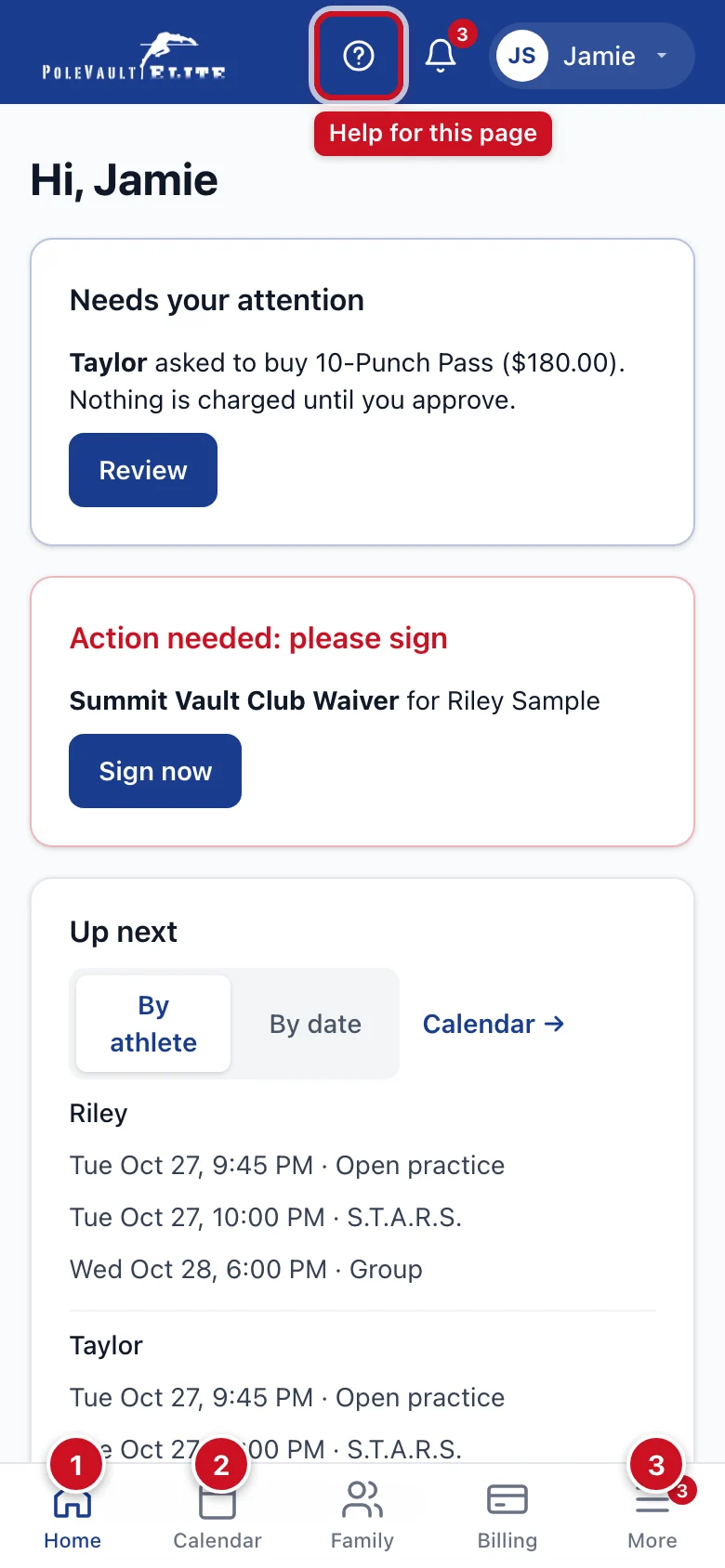
- Home shows quick tiles (News, Games, Calendar, Check in), what you owe, the next meet deadline, your To do list, what's coming up for your family (Up next), the latest news and your check-in code.
- Calendar is where you book and cancel practices.
- More holds everything else, in four groups: Training (Meets, Check in, Practice videos…), Account (Your programs, Documents, Profile), Club (Shop programs, News…) and Help (Help & feedback, What's new, Customize bar). Meets, Family, Billing and News show there when they aren't tabs.
Parents also get Family and Billing tabs; athletes with their own login get Meets and News. To pick your own, tap More → Customize bar. On a computer the same links run across the top of the page instead. See App basics for the full tour, dark mode and installing the app on your phone.
What's on Home
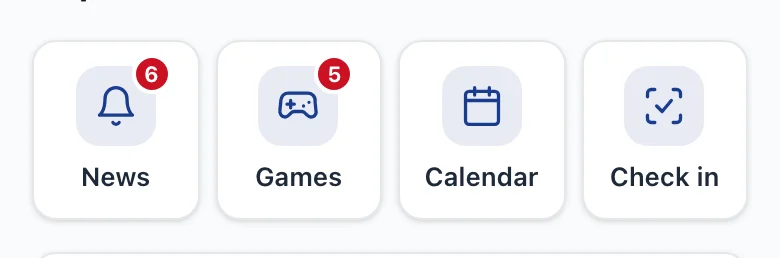
From the top:
-
Quick tiles under the greeting: News, Games, Calendar and Check in. A red number on News counts club posts you haven't opened yet. On Games it counts today's games you haven't finished: there are 8 (each version of Vaultle and Scramble counts on its own), and the number goes away once you've played them all. Games only shows if your club has games on, and Check in if you can check in.
-
Balance due: what you owe right now, with a Pay button (the due date, or Overdue since a date, is next to it). With nothing owed it says All paid ✓. Athletes whose parent pays don't see it.
-
Next meet deadline: the meet whose sign-up closes next that one of your athletes can still sign up for, who isn't signed up yet, and an Open meet button.
-
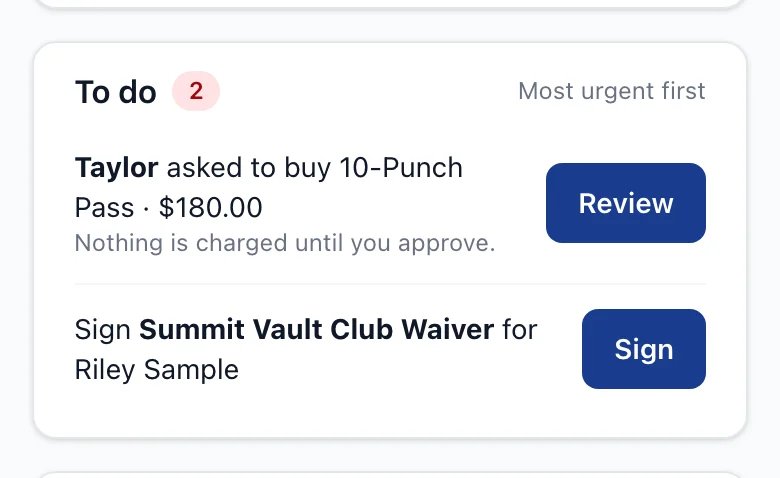
To do: everything that needs you, in one list, most urgent first, each with one button. The first three show; tap N more → for the rest. It can hold:
- Waiting for club approval while the club reviews a new account. If your club approves accounts after a few steps, it lists the steps still to do instead, with links.
- Who are you signing up for? until you answer (Add my athlete or I don't have an athlete). Part-way through adding an athlete: Finish adding your athlete with Continue.
- A parent/guardian invite to accept or decline. See Link another parent or an athlete.
- A purchase your athlete asked you to approve, with Review. See Approving your athlete's purchase.
- Each document still to sign, for you or an athlete, with Sign.
- Each profile still missing details, with Finish.
- Check that your details are still correct, when the club asks for a review, with Review.
- Add a payment method, if you skipped it at sign-up.
With nothing left it says Nothing to do. You're all caught up.
-
Up next: the next booked (or waitlisted) practices for each athlete. Families with more than one athlete can switch between By athlete and By date. Tap a practice to open it.
-
Today's games, Kudos and News (the three latest club posts, with All news →), when your club uses them.
-
Your check-in code (athletes): ask support@polevaultelite.com to scan it. My attendance → shows past practices.
-
Your athletes (or Parent / guardian for a teen): each athlete with a link to their check-in code, and Manage family →. An adult who trains and hasn't added anyone sees Your family ("Just you for now.") with an Add a family member → link instead. Your email and roles are on Profile.
Get help
Tap the ? at the top of any page for help with that page, or open More → Help & feedback and search for what you need. Longer articles start with a list of their sections.

See Common questions for quick answers and Using Help for tips. Something not working, or an idea for the app? Use Report a bug or Request a feature at the bottom of any Help page.