
Helping at a meet (crew jobs)
Sign up to help at a meet, confirm a job the club gave you or say you can't make it, add it to your calendar, and choose which crew emails you get. Officials also see the meet's entry list, can print it and can score the meet live. No login needed.
On this page
Meets run on helpers: officials, pit crew, the starter, the announcer, friends and family. The club calls the people who help affiliates, and the people working one meet its crew.
Sign up to help
- Open the club's Help at this meet link, or tap Help at this meet on the meet's page.
- Pick a job. Each shows its arrival time and how many spots are left.
- Signed in? Tap Sign me up. Otherwise type your name, email (twice) and phone first.
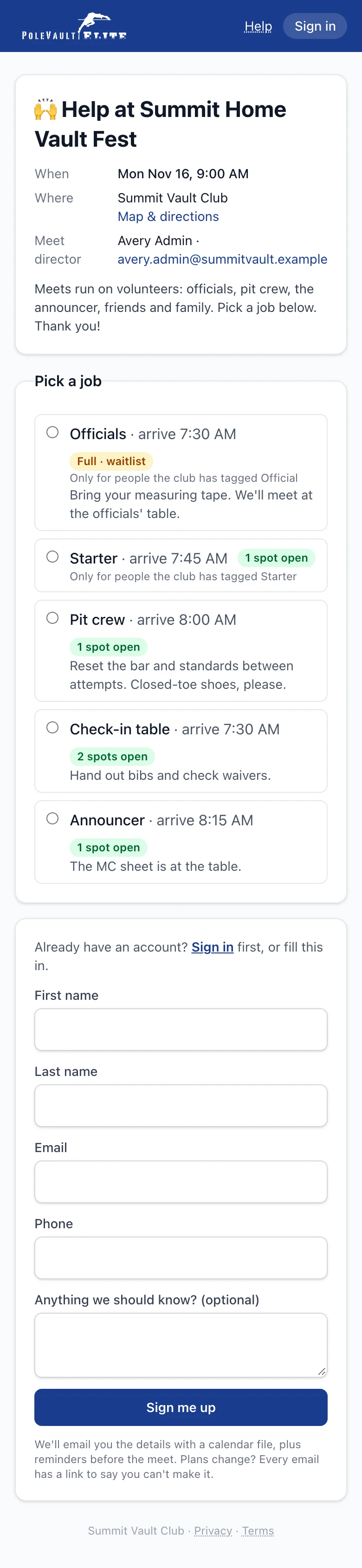
You're confirmed straight away and get an email with the details and a calendar file. If the job is full you go on the waitlist, and we email you if a spot opens up. Some jobs, like Officials, are only for people the club has tagged.
Your jobs: My meets
Every crew email has a private link to your jobs, so you don't need a password. Signed in, your jobs are at the top of Meets → My meets under Helping at.
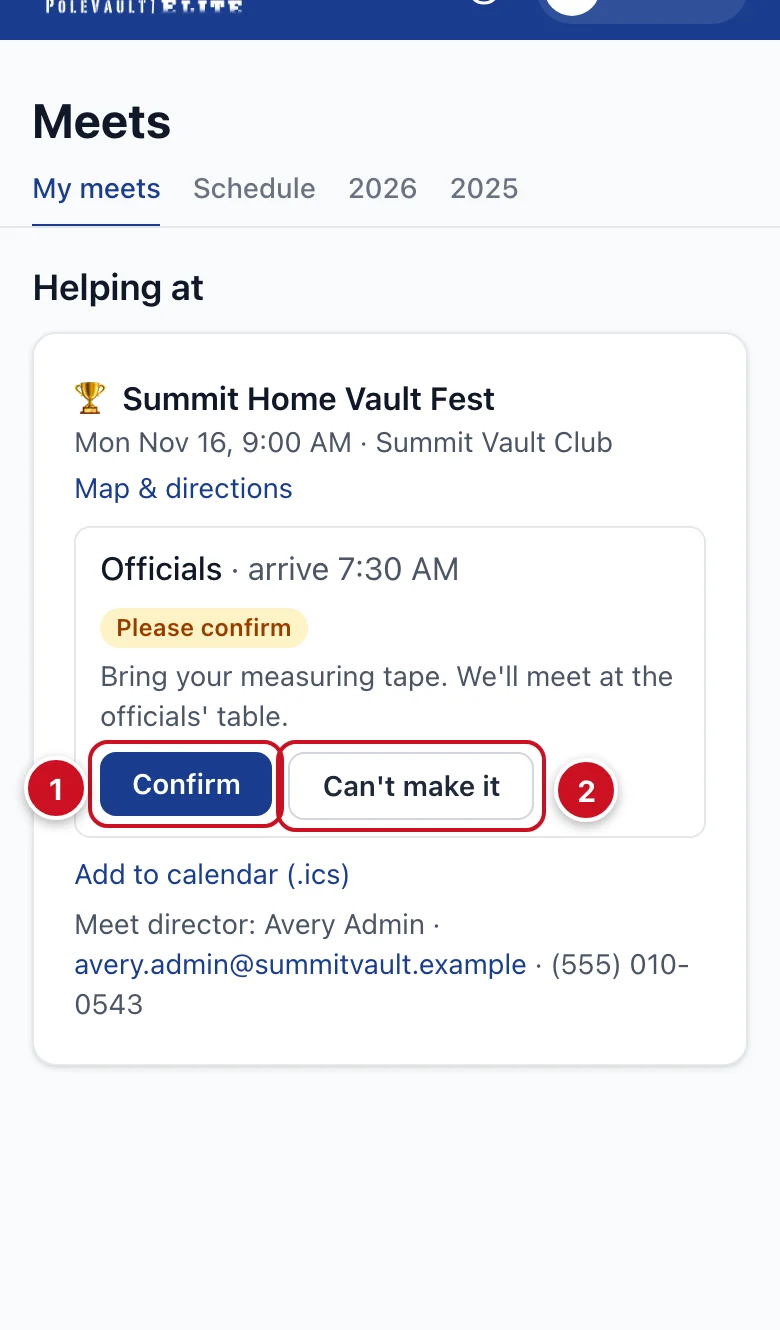
- When the club gives you a job, it says Please confirm. Tap Confirm (1).
- Plans changed? Tap Can't make it (2), so the club can find someone else.
- Add to calendar (.ics) puts the job in your phone's calendar.
- The meet director's contact is at the bottom.
Officials: the entry list
If you're an official at the meet, your job card has an Entries section. Tap it to open the list. It's there from the moment your job is confirmed until 2 days after the meet. You see it if:
- your job is an officials job (only for people tagged Official), or
- the club has tagged you Official and you have any confirmed job at the meet.
The list shows:
- every entry by division, sorted by last name, with the school or club and a count per division;
- entries still waiting for payment or a waiver, marked Pending;
- the waitlist on its own.
It shows names and schools only: no ages, birthdays, emails, phones or prices. It also includes athletes whose families hid them from public lists (the PR wall and the public Entries list). Officials need the full field, so please keep the list to the meet.
Tap Print entries (PDF) for a sheet you can print. It has the division lists with blank Marks and Notes columns. The PDF works from your private link too, but only for your own meets.
Other helpers (pit crew, volunteers) don't see the list.
Officials: score the meet
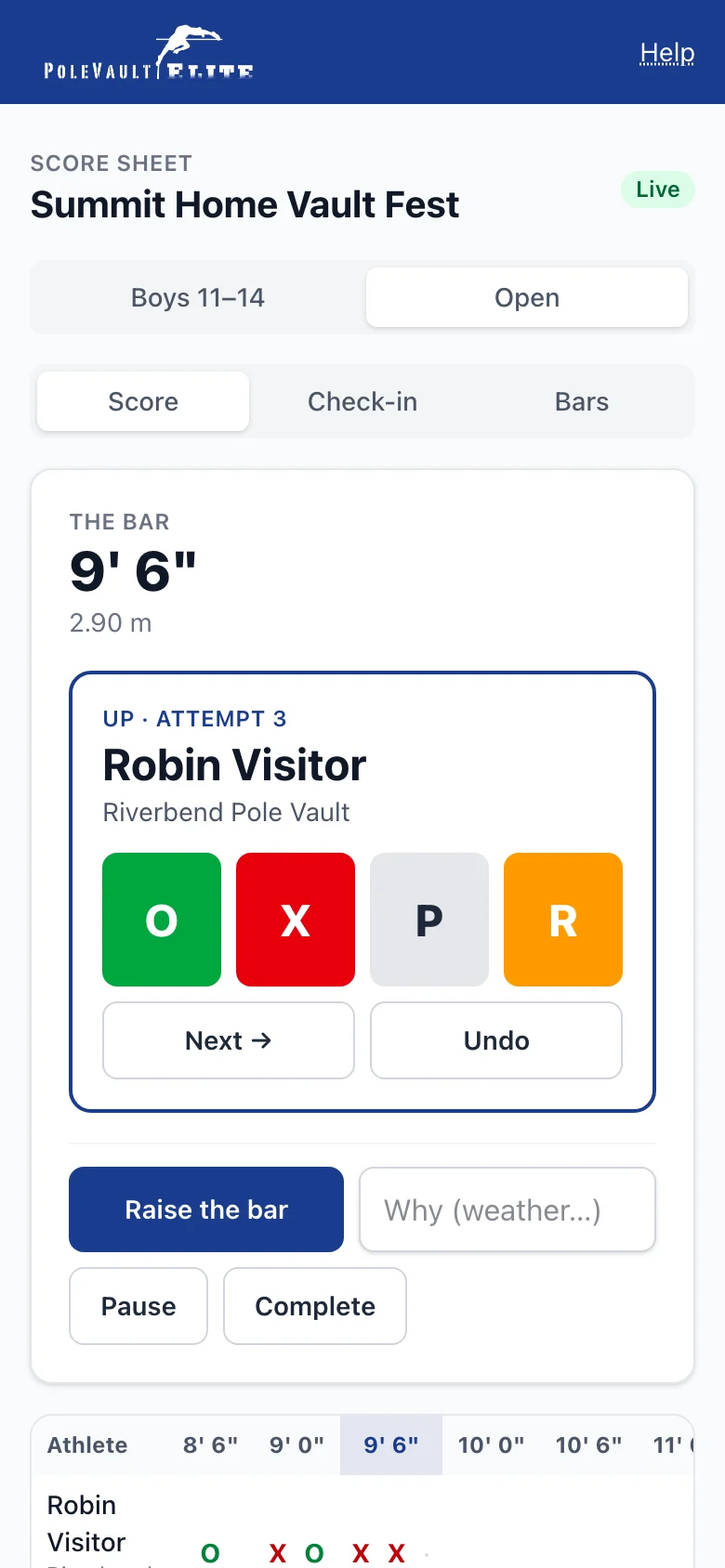
When the club scores the meet live, your job card also has Score the meet. It works signed in or from your private link, with no password.
- Pick your flight. On Check-in, tap Here for each athlete who's there, or Scratch. Then tap Start the flight.
- The athlete who's Up is at the top. Tap O (cleared), X (missed), P (passed) or R (retired). Next → skips someone who isn't ready.
- Raise the bar when everyone is done at a height. Anyone who still has attempts is passed (you're asked first).
- To fix a mark, tap it in the grid and pick the right one.
- Tap Complete when everyone is out. The club then makes the results official.
Only one person scores a flight at a time. If someone else is scoring, you'll see who, with Take over.
Emails you'll get
- A confirmation when you sign up or the club gives you a job, with the job, arrival time, place and map, the director's contact and a calendar file.
- Reminders a few days and the day before.
- A note whenever the time, date or place changes, or the meet is cancelled.
- Sometimes a thank-you after the meet.
Confirmations and changes always come. To stop reminders and thank-yous by email, untick Meet crew in Profile → Notifications, or use the unsubscribe link in a reminder. See Choose your notifications.
Want to sign in?
Ask the club for a login invite, or use Set a password on your private My meets page. After signing in you can add Face ID or a passkey. If you're only helping (not a member), you'll see My meets, Help and Profile.
Already a member? Your crew jobs simply show on your My meets too.
FAQ
Why can't I see the Entries section? Only officials see it, and only once their job is confirmed. Tap Confirm if your job says Please confirm. The list also goes away 2 days after the meet, or if the meet is cancelled.
An athlete I expected isn't on the list. The list shows confirmed and pending entries and the waitlist. Someone who withdrew isn't on it. Ask the meet director.