

Entering a home meet
Register for a meet the club hosts, step by step: the athlete, division and heights, a few fun questions, the waiver (or email it to a parent) and Review & pay with your discount code. No account needed for non-members.
On this page
When the club hosts a meet, you enter it with a short form, one step at a time. A bar at the top shows where you are, and Back and Next move between steps. Each step is checked when you tap Next: anything missing shows at the top of the step. From the division step on, the bar at the bottom shows the Total.
- About the athlete: gender, where they are in school on meet day (the grade, suggested from the date of birth, and the school; or college, or done with school), and an emergency contact.
- Division & entry: the division, opening height, PR and affiliation.
- For the announcer: a few fun questions and pole vault accomplishments (all optional).
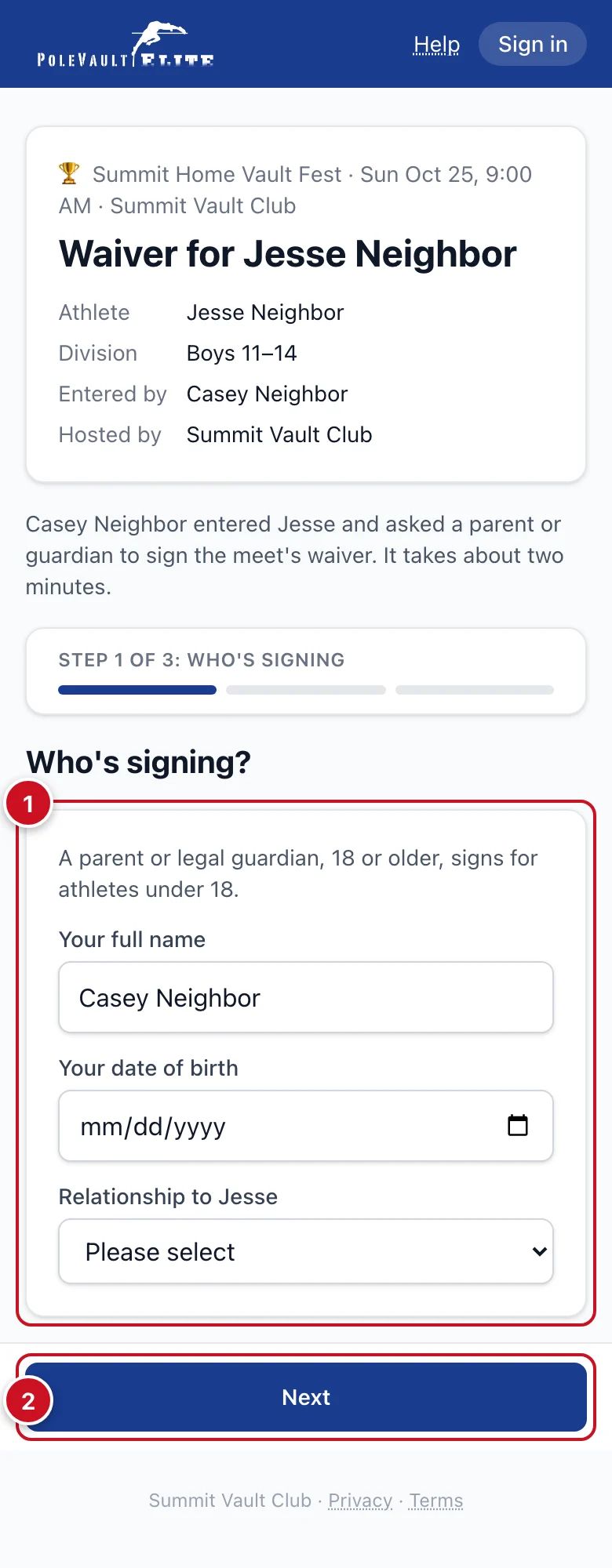
- Waiver: who's signing, the waiver itself and the signature. Skipped when it's already signed.
- Review & pay: an order summary with the price, any discount and the total, then how you pay.
Members
- Open the meet from the Calendar or Meets and tap Register on your athlete's line under Your athletes. The page title reads Register name.
- The form is filled in from the profile (gender, grade and school, emergency contact, PR). Check it.
- Changed the gender, grade, school, college or emergency contact? Leave Update [name]'s profile ticked to save it to the profile too. Details the profile didn't have yet (like a first emergency contact) are always saved.
- Pick a division. Divisions your athlete can't enter are greyed out with the reason. When the club sorts divisions by PR or opening height, the division is picked for you as you choose the heights, with why ("Picked from your PR"). You can change it to another division your athlete fits.
- Pick the opening height and PR from the lists (both are required: choose No PR yet if you don't have one), then the Affiliation (your club, school or team, None/Unattached, or Other to type it).
- Answer the questions, sign the waiver (see below), and on Review & pay choose how to pay, then tap the button (for example Pay $20 & register).
The price depends on the date and on who's entering: see the meet's Pricing section (See pricing). Signed in, it shows Your price now for each of your athletes, including a special price that only applies to them (for example through a training group), and All dates & prices. You always pay the lowest price that applies; a discount for a second athlete from the same family comes off on Review & pay ("Family discount −$5"). If your athlete can't enter yet, the meet says Opens to you with the date.
A meet that's part of a series (like Friday Night Heights) may offer series entry (Register for all N meets): one registration and one payment for every meet left. Registering for one meet of a series, the form says "Friday Night Heights #1 only" with the date and a link to the whole series. See Enter a whole meet series.
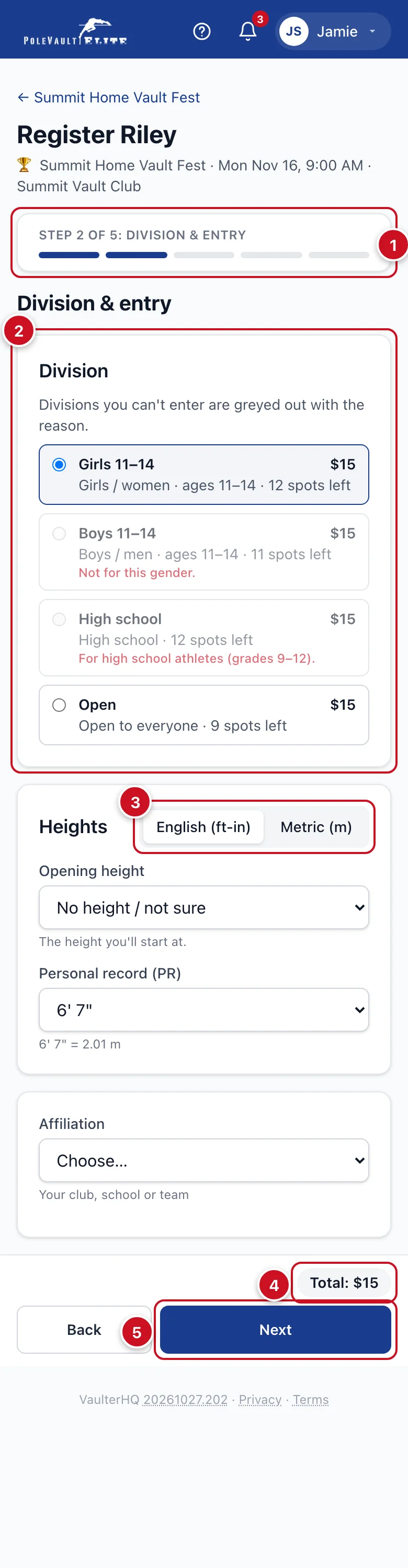
Heights in feet or metres
Tap English (ft-in) or Metric (m) above the heights. Each choice shows the other unit next to it (for example 10' 6" = 3.20 m). The app remembers the unit you used last.
- Opening height: every inch, or every 5 cm. Not sure yet? Choose No height / not sure.
- PR: every inch, or every 1 cm. No PR yet? Choose No PR yet.
The waiver
First, say who's signing: your full name, your relationship to the athlete (Self (18+), Parent, Legal guardian or Other) and your own date of birth. These fill in the printed name and relationship on the waiver for you. On the public form they're already filled in: the parent or guardian from the athlete step, or the athlete themselves (name, date of birth, Self (18+)) when they're 18 or older. Change them if someone else signs.
- An athlete under 18 can't sign their own waiver. A parent or guardian, 18 or older, signs it.
- Athletes 18 and over sign as Self (18+).
- The waiver's contact section is filled in from the athlete step (name, date of birth, gender, email, phone, emergency contact). For an athlete under 18, the email and phone are the parent's or guardian's. Check them; anything you change on the waiver stays as you typed it.
Email it to a parent
For athletes under 18 whose parent isn't there: choose My parent/guardian will sign it: email it to them and type their name and email.
- The entry is made right away, and you can pay. It shows Waiting for waiver until the parent signs.
- The parent gets an email with a link to the meet and the athlete, then the waiver. The link works until entries close, or for 7 days, whichever is sooner.
- Once they sign, you get a Waiver signed email, and a paid entry is confirmed.
- Reminders go to the parent 3 days and 1 day before entries close.
Members whose athlete has another parent linked to the family see Send to [name] (for example "Send to Mom"). That parent gets a notification and an email to sign it.
Review & pay
The Order summary shows the meet, the entry (division and athlete) with its price (member or non-member), any discount, and the Total due today. Below it, Entry details lists what you entered; tap Edit to go back to that step.
Have a discount code? Tap Have a code?, type it and tap Apply: the discount and the new total show before you pay. Some meets give a price to people with an access code (the box then says Discount or access code): type it the same way and your price shows. Codes for a club or school only work when that's your affiliation (not with None/Unattached).
Did the club give your family an offer for meets (for example a free entry)? It comes off by itself, with no code: the order summary shows it with its name, for example "Free meet −$35", and it counts as used once you register. A code you type is used instead of it for that entry.
Paying (members): choose your saved card or bank account to pay right away, or A different card or bank account to pay on the secure payment page next. You can tick the box to make the new one your payment method for future bills. No saved card? You add one on the next screen. If the card is declined, the entry is kept: pay from the meet to confirm the spot.
Teens with their own login: depending on your parent's setting, you pay using their card (for example Pay $20 using Dad's card), or the entry goes to them to approve. You can also choose Ask Dad to use a different card: it goes to them as a request, and your spot isn't held until they approve.
Hear about the next meet: tick Email me when new meets are posted (it starts unticked) to get an email when the club posts a new meet you can enter. For a meet in a series, choose All our meets or Just <series name>. See Emails about new meets.
If the division or meet is full, the button says Join the waitlist: nothing is due now, and you pay only if a spot opens. A free entry says Register (free).
Price by date: the Order summary shows the price of the period open now (with its name, for example "Early"). A division with its own prices shows them on the form.
Also send entry details to (optional): add up to 3 more email addresses, such as the other parent or a coach. They get copies of the confirmation, waiver status and reminders.
Not a member? No account needed
The club shares a link to the meet's page. You can also find the club's open meets at /meets/<club>.
- Fill in the athlete's details, and type your email twice (Email and Confirm email). For athletes under 18, add a parent or guardian: they get the emails.
- Go through the steps as above.
- On Review & pay, tick Save my info for next time and choose a password if you'd like to sign in later and have your details filled in.
- Tap Pay $X & register, then pay by card or bank on the secure payment page. Payment confirms the spot.

Unpaid entries are released after the hold time shown on the form (usually 24 hours), so pay right away.
You get an email with a receipt, a reminder 2 days before the meet with the check-in time, and a link to see, pay or withdraw your entry.
If your email already has an account, we ask you to sign in, or email you a link to continue. That way your entries stay together.
Coming back (signed in, or from that link), the form is filled in from last time: "We filled in name's details from last time". With more than one athlete, choose Who's entering? first. Tap Someone else (or Someone new) for a new athlete with a blank form.
If the athlete looks like someone who is already a member of the club, we ask you to Sign in to register them as a member (member price and saved details). If they really are new to the club, tick Name is new to the club (not a member) on Review & pay and submit again.
Change your entry
Open the meet (members) or the link in your email (guests) and tap Change entry next to your athlete.
Until registration closes, you can change these yourself, then tap Save changes:
- the opening height (type it like 9-6 or 2.90m, or leave it empty);
- your answers for the announcer;
- the division: only divisions your athlete can enter, with room, at the same price. A division with a different price says different price: ask the club.
Everything else (name, gender, date of birth, grade, school, affiliation, email or phone, or a division with a different price): type what should change under Request a change and tap Send request.
- The club gets your note and makes the change. Your entry shows Change requested until they're done.
- After registration closes, the entry can't be changed here, but Request a change still works.
- When the club changes the division or other details, you may get an email, "Your entry was updated", listing what changed.
See who's entered
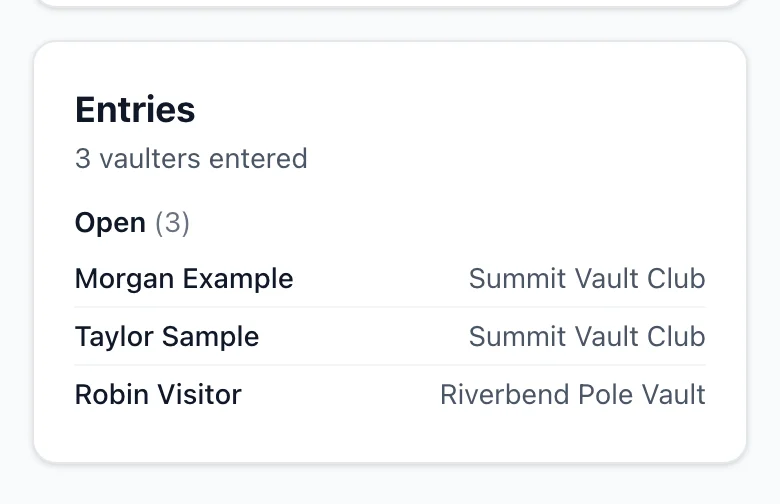
Many meets show an Entries list below the meet details (on the meet in the app, it's under More details). Usually, signed-in club members see it while registration is open, and everyone sees it once registration closes; the club chooses per meet. For away meets, only signed-in club members see it.
- While registration is open, the list starts closed: tap Entries · 12 vaulters entered to open it. Once registration closes, it starts open.
- It shows how many vaulters are entered, then each division with the athletes' names and their club, school or team (Unattached when they didn't pick one), sorted by last name.
- Every entry is listed, including ones not complete yet: those have an asterisk after the name (Grant Gogel*) and a note under the list, "Entry not complete yet. If this is you, sign in or contact the club to see what's needed." The list never says why; only your family sees that, under Your entries. A Waitlist list shows who's waiting for a spot.
- No ages, birthdays, emails or prices are shown.
- Your athlete isn't listed if you turned off the PR wall for them (Family → athlete → Settings → Sharing & privacy → More settings).
Watch a meet live
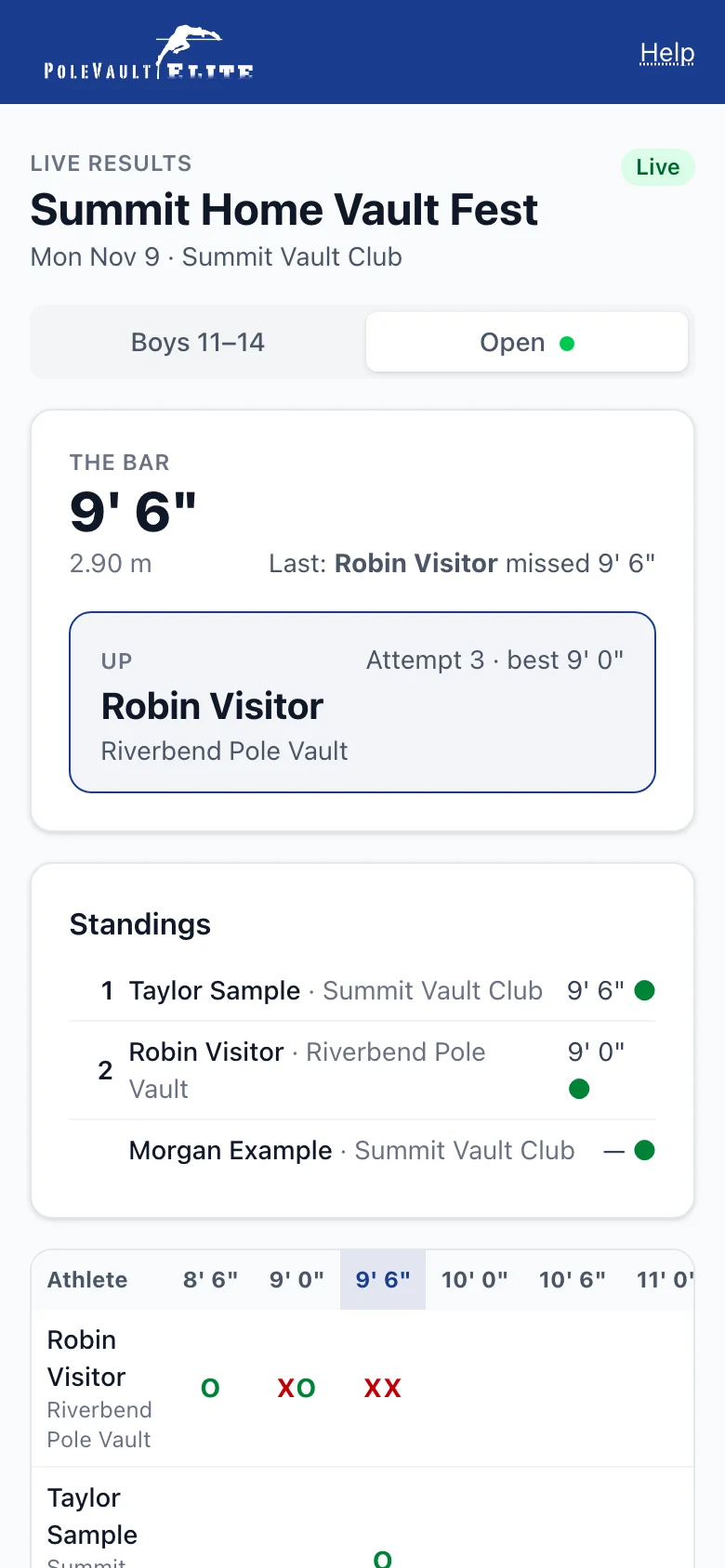
When the club scores a meet live, the meet page shows Live results (Live results now while a flight is going on). It's also on the website's Live stream page during the meet.
- The bar, who's Up, On deck and In the hole, and the last attempt.
- The standings, and the full grid of attempts (O cleared, X missed, P passed, R retired). Each flight has its own tab.
- It updates every few seconds on its own. If your connection drops, it says "Not updating. Reconnecting…" and catches up.
- After the meet it shows the final results, marked Official once the club checks them.
Who can open it follows the same rule as the Entries list.
When the club streams the meet, a red Live video link shows on the live results page and beside the meet on the Meets list while the meet is on. After the meet, the video stays beside the meet on the Meets list as ▶ Video (next to Results), and the meet page keeps Watch the video.
Your entry status
When you're signed in, Your entries above the list shows each of your athletes entered in the meet (or you), even before the entry is confirmed. Only you see it, and only for your own family.
- Payment due with the amount: tap Pay now to pay it. If the fee is on your parent's or guardian's account, it says so instead.
- Payment processing: you paid by bank and the payment is still clearing (a few business days). Nothing more to pay, and the public list shows no asterisk for it.
- Waiver needed: tap Sign now to sign the meet waiver yourself (a parent or guardian), or Resend to name to email it again to the parent it went to.
- Confirmed ✓: the entry is done. On the waitlist means you're waiting for a spot.
FAQ
Can I still enter after registration closes? If the meet still shows Register, yes, until Register by; See pricing shows the price then. Otherwise ask support@polevaultelite.com (members) or contact the club from the meet page.
Why is a division greyed out? It's for a different gender, age on meet day or grade on meet day, or for a different PR or opening height. Pick another, or ask support@polevaultelite.com.
Why did my division change? When the division was picked from your PR or opening height and you change that height before registration closes, the division follows (at the same price). Your meet card shows why, for example "Open (from your opening height)".
Do I have to type the athlete's details again on the waiver? No. The waiver's contact fields are filled in from the athlete step. Fill in anything it asks for that the athlete step didn't, such as the address.
Not in high school? Younger athletes pick their grade (Kindergarten to 8th); college athletes In college; adults Done with school. Tap Not right? Change to see every choice. See Grade and school.
My child is in 1st grade. Check the date of birth: the form suggests 1st grade for most 6-year-olds. Otherwise tap Not right? Change and pick it.
The emergency phone isn't accepted. Type a 10-digit number, e.g. (317) 555-1234. International numbers start with +.
The division is full. If it has a waitlist, you join it and pay only if a spot opens.
The parent didn't get the waiver email. Open the meet while signed in and tap Resend to name under Your entries, or ask support@polevaultelite.com to resend it. Check the spam folder too.
Why does my athlete have an asterisk? The entry isn't complete yet: the fee is still due or the waiver isn't signed. Sign in and open the meet; Your entries says which, with Pay now or Sign now.
Why isn't my athlete on the entries list? Athletes whose PR wall is turned off aren't listed. Some meets show the list only after registration closes.
I made a typo in the athlete's name. Tap Change entry, then Request a change and say what's wrong. The club fixes it.
Can I switch divisions? Yes, until registration closes, to one your athlete can enter at the same price (Change entry). For a division with a different price, send Request a change.
Can I withdraw? Yes, until entries close: from the meet (members) or the link in your email (guests). An unpaid fee is cancelled; a paid fee follows the club's rule shown before you confirm.